Learning objectives
By the end of this chapter, you will be able to:
(1) Identify the Python interpreter and key package versions that produced a result.
(2) Use an interactive Python session, including optional IPython, for focused scientific exploration and debugging.
(3) Diagnose common environment-dependent behavior using a bounded, reproducible protocol.
(4) Explain why notebook execution order can invalidate a result and perform a clean-kernel check.
(5) Distinguish a notebook’s role in exploration and communication from a module’s role in reusable computation.
(6) Record the inputs, command, and environment context another reader needs to investigate a disagreement.
Prerequisites
Why this chapter matters
Picture this: You download code from a groundbreaking scientific paper, eager to reproduce their analysis. You run it exactly as instructed. Instead of the published results, you get error messages, or worse — completely different values with no indication why. This frustrating scenario happens to nearly every computational scientist, from graduate students to professors. The problem isn’t bad code or user error; it’s that scientific computing happens in complex environments where tiny differences can cascade into complete failures.
This chapter reveals the hidden machinery that makes Python work (or not work) on your computer. You’ll learn how to identify the Python that actually ran your code, use IPython for focused exploration, recognize the risks of Jupyter notebook state, and record enough context for a collaborator to investigate a disagreement. These aren’t just technical skills — they’re part of trustworthy scientific research.
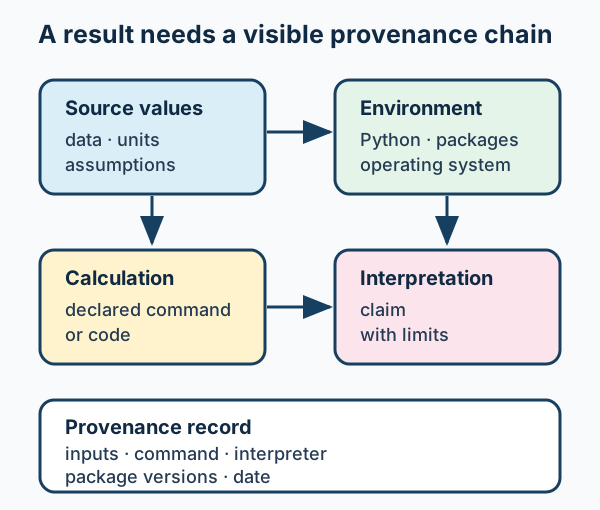
Figure 1:A scientific result needs a visible provenance chain: the data and assumptions, the environment that ran the work, the calculation, and the interpretation.
What to notice: a discrepancy can originate at any link. Recording the interpreter, package versions, inputs, and command does not prove a conclusion; it gives another reader somewhere concrete to begin investigating it.
By chapter’s end, you’ll have a practical way to diagnose common environment problems, describe the difference between exploration and reproducible science, and record enough environment information for another reader to investigate a disagreement. Let’s begin with interactive exploration.
Try this chapter
Browser Python lab · Notebook State Detective: deliberately run a notebook out of order, inspect the stale result it leaves behind, then restart and run cleanly. The activity is optional; the static explanation below remains complete if browser Python is unavailable.
Return to the Part I guide if you are choosing a first reading route.
1.1 Interactive exploration: your computational laboratory
While you could use the basic Python interpreter by typing python, IPython (type ipython at the terminal instead) transforms your terminal into a powerful environment for scientific computing and exploratory data analysis (EDA). Think of it as the difference between a basic calculator and one with advanced scientific functions — both compute, but one is designed for serious scientific work. In most scientific workflows, IPython becomes the default interactive “scratchpad” because it makes exploration faster and debugging more transparent.
Launching your laboratory.
First, ensure you’re in the right environment, then launch IPython. If it is
not installed yet, use the ordinary python prompt for now; the core reasoning
in this chapter does not depend on Conda or IPython.
# Terminal commands (type these in your terminal, not in Python!).
# If your project setup uses Conda, activate its named environment first:
$ conda activate scientific-python  # Otherwise use your setup guide's Python.
$ ipython

# You'll see something like this appear:
Python 3.11.5 | packaged by conda-forge
IPython 8.14.0 -- An enhanced Interactive Python
In [1]:
Notice the prompt says In [1]: instead of >>> (which is what basic Python shows). This numbering system is your first hint that IPython is different — it remembers everything. Each command you type gets a number, making it easy to reference previous work.
The power of memory.
IPython maintains a complete history of your session, accessible through special variables:
# Type these commands one at a time in IPython

# Example: Calculate something useful
H0 = 70.0  # Hubble constant in km/s/Mpc

# H0 has units (km/s)/Mpc, so 1/H0 is a time.
# 1 (km/s/Mpc)^-1 is about 978 Gyr, so t_H is about 978/H0 Gyr.
# Equivalently, t_H is about 9.78 * (100/H0) Gyr.
t_hubble = 1.0 / H0
t_hubble_gyr = t_hubble * 978  # Approx: 9.78 * (100/H0) Gyr

print(f"Hubble time: {t_hubble_gyr:.1f} Gyr")

# In IPython, you can reference previous work:
print("In IPython, Out[n] stores outputs, In[n] stores inputs")
print("The underscore _ references the last output")
Check Your Understanding
What’s the difference between In[5] and Out[5] in IPython?
Solution:
In[5]contains the actual text/code you typed in cell 5 (as a string)Out[5]contains the result/value that cell 5 produced (if any)
For example:
In[5]might be"np.sqrt(2)"Out[5]would be1.4142135623730951
This history system lets you reference and reuse previous computations without retyping — crucial when analyzing large datasets or iterating on algorithms.
Tab completion: your exploration tool.
Tab completion helps you discover libraries without memorizing everything. In
an actual IPython session, type np. and press Tab; the page cannot reproduce
that interaction. The code below answers a different question: what names does
this installed NumPy expose?
import numpy as np

# In real IPython, type: np.<TAB>
# Shows all available functions

available_functions = [item for item in dir(np) if not item.startswith('_')]
print("NumPy contains:", len(available_functions), "functions/attributes")
print("Sample:", available_functions[:10])

# To see functions for FFT analysis (np.*fft*?<TAB> in IPython):
fft_functions = [item for item in dir(np) if 'fft' in item.lower()]
print("\nFFT-related functions:", fft_functions)
NumPy contains: 496 functions/attributes
Sample: ['False_', 'ScalarType', 'True_', 'abs', 'absolute', 'acos', 'acosh', 'add', 'all', 'allclose']
FFT-related functions: ['fft']
Reference: a few high-value IPython commands.
IPython’s magic commands give you capabilities beyond standard Python. Use them to inspect a concrete question, not to manufacture a universal performance claim.
In [7]: %timeit values[values > 0]**2
In [8]: %debug
In [9]: np.fft.fft?
%timeit measures the particular operation, data size, array dtype, machine,
and installed numerical libraries in front of you. Chapter 7 returns to arrays;
the performance-reference material later in the book explains how to make a
fair comparison.
Common Bug Alert: Platform-Specific Timing
Timing results vary significantly between machines due to:
CPU speed and architecture (Intel vs AMD vs ARM)
NumPy compilation (MKL vs OpenBLAS vs BLIS)
System load and background processes
Python version and compilation options
Best practice: Measure the workload you actually intend to run, record the machine and software context, and compare implementations that produce the same result.
Getting help instantly.
IPython makes documentation accessible without leaving your workflow. These are commands to type at an IPython prompt, not Python statements to copy into a script:
In [10]: np.fft.fft?   # documentation
In [11]: np.fft.fft?? # source, when installed source is availableReference: managing your workspace.
In [12]: %who
In [13]: %whos
Use these as a quick reminder of what is currently in an interactive session; they are not a durable record of an analysis. A saved command, declared input, and clean re-execution are stronger evidence.
Why This Matters: Your First Day of Research
When your advisor hands you a data file and says “can you check if this is interesting?”, an interactive session can help you:
Load the data
Check the structure with tab completion
Plot a quick visualization
Test a hypothesis
The purpose is not to avoid writing a script forever. It is to learn enough about the data and question to decide what reusable computation is warranted.
The More You Know: The Reproducibility Crisis in Science
A 2018 study attempted to obtain data and code from 204 computational papers in Science magazine. The researchers obtained artifacts for 44% of the papers and estimated that 26% could reproduce their computational findings (Stodden et al., 2018). Problems that often block reproduction include:
Missing dependencies and software versions
Hardcoded file paths to data
Undocumented parameter choices
Missing random seeds for simulations
Tools like IPython’s %history and %save commands can preserve part of an
audit trail. They need to be paired with recorded inputs, dependencies,
parameters, and a clean re-execution before another person can investigate the
analysis.
Additional Resources:
Nature’s reproducibility survey (2016) - More than 70% of researchers have failed to reproduce another scientist’s experiments
1.2 Deep Dive: How Python finds an import
When you type import numpy, a complex process unfolds behind the scenes. Understanding this machinery is the difference between guessing why ImportError: No module named 'scipy' fails and knowing exactly how to fix it.
Why Import Systems Matter: Modern scientific analysis relies on dozens of specialized packages. A typical data processing pipeline might import numpy for arrays, scipy for algorithms, and matplotlib for visualization. When you’re running code on a deadline, understanding how Python finds and loads these packages can save your project.
The import system, in outline.
Python’s import system is like a librarian searching through a card catalog. When you request a book (module), Python uses a defined set of import finders; ordinary file-based imports commonly consult sys.path. This systematic process ensures consistency but can cause confusion when multiple versions or local names exist.
Let’s peek behind the curtain to understand this process. Every time Python starts, it builds a search path based on your environment, installation method, and current directory. This path determines everything about which code gets loaded:
import sys
from pathlib import Path

# Where is Python running from?
print(f"Python executable: {sys.executable}")

# What version are we using?
print(f"Python version: {sys.version.split()[0]}")

# Where will Python look for modules?
print("\nPython searches these locations (in order):")
for i, path in enumerate(sys.path[:5], 1):
    # Shorten paths for readability
    display_path = str(path).replace(str(Path.home()), "~")
    print(f"  {i}. {display_path}")
print("  ... and more")

# Check for key packages
print("\nChecking for key packages:")
for pkg in ['numpy', 'scipy', 'matplotlib']:
    try:
        mod = __import__(pkg)
        version = getattr(mod, '__version__', 'unknown')
        print(f"  ✓ {pkg:12} version {version}")
    except ImportError:
        print(f"  ✗ {pkg:12} NOT INSTALLED")
Python executable: /home/runner/work/comp521/comp521/.venv/bin/python
Python version: 3.12.3
Python searches these locations (in order):
1. /usr/lib/python312.zip
2. /usr/lib/python3.12
3. /usr/lib/python3.12/lib-dynload
4.
5. ~/work/comp521/comp521/.venv/lib/python3.12/site-packages
... and more
Checking for key packages:
✓ numpy version 2.5.2
✓ scipy version 1.18.0
✓ matplotlib version 3.11.1
The search path (sys.path) is one important part of Python’s roadmap for finding ordinary file-based modules. Those finders usually consider its entries in order, which is why multiple versions of a package can cause confusion—Python does not select a package because it seems “best.” Other finders can resolve built-in modules, namespace packages, zip imports, or custom locations without using that simple path search.
This ordered search has important implications for software development. If you have a file named numpy.py in your current directory, Python will import that instead of the real numpy package. This is a common source of mysterious errors when students name their test scripts after the packages they’re learning.
Check Your Understanding: Import System Diagnostics
You run import mypackage and get ModuleNotFoundError. Your colleague runs the same command and it works. Each of you can find the package with the package manager you happened to invoke.
Before reading the solution, write down:
Three possible causes for this difference
The diagnostic commands you’d run (in order)
How you’d fix each potential cause
Solution:
Possible causes and diagnostics:
Different Python interpreters
Diagnostic:
python -c "import sys; print(sys.executable)"Fix: Activate the correct environment
Different project or package location
Diagnostic: Compare
sys.executable,sys.path, and the package originFix: Install the package into the intended interpreter or use the project’s documented install route; do not permanently patch
sys.pathto hide the disagreement
Package installed by a different Python
Diagnostic:
python -m pip show mypackagefor the active interpreterFix: activate the intended environment, then use its
python -m pip(or the environment’s documented package manager)
The systematic debugging approach:
# Step 1: Which Python?
import sys
print(sys.executable)

# Step 2: Where does Python look?
for i, path in enumerate(sys.path):
    print(f"{i}: {path}")

# Step 3: Where is the package for *this* Python?
# Run in terminal: python -m pip show mypackage

# Step 4: Is there a name conflict?
import os
print(os.listdir('.'))  # Check for local mypackage.py
The key insight: many import failures arise at the boundary between the interpreter you expected and the interpreter or import path actually in use. Diagnose that boundary before rewriting the analysis code.
The payoff of this Deep Dive is not memorizing every import mechanism. It is
knowing why sys.executable, a package origin, and a local name conflict are
better evidence than guessing which installation Python happened to use.
Reference: diagnosing imports and interpreter mismatches
Debugging import problems.
Check Your Understanding
You get ModuleNotFoundError: No module named 'scipy.optimize'. What are three
possible causes and their solutions?
Solution:
Three possible causes and solutions:
The active interpreter has no SciPy installation
Check:
python -c "import sys; print(sys.executable)"followed bypython -m pip show scipySolution: install SciPy using the package manager associated with that interpreter or activate the project environment
A local file or directory shadows
scipyCheck:
python -c "import scipy; print(scipy.__file__)"Solution: rename the conflicting local file/directory and restart Python
An old or damaged installation
Check:
python -c "import scipy; print(scipy.__version__)"Solution: recreate the project environment from its recorded specification rather than layering ad-hoc repairs into an unknown one
The most robust fix:
# One possible Conda-based recovery route; use your project's documented tool.
conda create -n clean_env python=3.11 numpy scipy matplotlib
conda activate clean_env
Multiple Pythons: a common failure mode.
Most systems have multiple Python installations, especially on shared computing clusters:
from pathlib import Path
import sys

# Common Python locations
common_pythons = {
    'System Python': '/usr/bin/python3',
    'Conda (base)': '~/miniforge3/bin/python',
    'Conda (env)': '~/miniforge3/envs/scientific-python/bin/python',
    'Homebrew (Mac)': '/opt/homebrew/bin/python3',
    'Module system': '/software/python/bin/python'
}

print("Common Python locations on systems:")
print("-" * 50)
for name, path in common_pythons.items():
    expanded_path = Path(path).expanduser()
    exists = "✓" if expanded_path.exists() else "✗"
    current = "<- CURRENT" if str(expanded_path) in sys.executable else ""
    print(f"  {exists} {name:20} {path:30} {current}")

print("\nEach interpreter has its own package set.")
print("Record the executable instead of assuming an activation command worked.")
Common Python locations on systems:
--------------------------------------------------
✓ System Python /usr/bin/python3
✗ Conda (base) ~/miniforge3/bin/python
✗ Conda (env) ~/miniforge3/envs/scientific-python/bin/python
✗ Homebrew (Mac) /opt/homebrew/bin/python3
✗ Module system /software/python/bin/python
Each interpreter has its own package set.
Record the executable instead of assuming an activation command worked.
Common Bug Alert: Cluster Python confusion
Symptom: Code works on laptop but fails on computing cluster
Cause: Different Python modules loaded by default
Example: On many clusters:
$ module load python  # Loads system Python
$ python script.py # May use a Python different from the project environment.Fix: activate the project environment and record the interpreter that will run the job:
$ conda activate scientific-python
$ which python  # Verify it's YOUR Python
$ python script.py
Best Practice: Add to your job scripts:
#!/bin/bash
#SBATCH --job-name=analysis

# The initialization path is installation-specific; use your cluster's
# documented path.
source /path/to/miniforge3/etc/profile.d/conda.sh
conda activate scientific-python
python your_script.py
1.3 Jupyter Notebooks: Powerful, Stateful, and Easy to Misuse
Jupyter notebooks seem perfect for scientific computing and data analysis - you can mix code, plots, and explanations in one streamlined document. You’ll see them in tutorials and even published papers. If you’re like most students, notebooks are probably how you learned Python, and there’s good reason for that - they’re excellent for learning concepts and exploring data interactively.
However, as projects grow more complex—think large simulations, Monte Carlo methods, or processing gigabytes of data—carelessly managed notebooks reveal limitations that can corrupt results and make debugging nearly impossible. The hidden-state problems below are not academic edge cases; they are reasons to use notebooks with an explicit reproducibility discipline.
For sustained work, separate reusable computation from the notebook narrative: put functions in importable modules and let the notebook document the analysis, figures, and interpretation. That separation supports testing, review, version control, and a readable scientific record.
The seductive power of notebooks.
To start Jupyter after selecting the environment your project uses:
# Terminal commands; activate only if your project uses Conda.
$ conda activate scientific-python
$ jupyter lab

# Opens browser at http://localhost:8888
# You can create notebooks, write code, see plots inline
The hidden-state monster.
The most insidious problem is not that a notebook contains cells; it is that a later cell can leave an earlier derived result in memory after its inputs have changed. A clean, top-to-bottom run has a defined order. A hand-picked sequence does not.
The page keeps the four cells together so you can read their intended source order. The browser lab below exposes them as separate executable cells.
# Cell 1: establish the original configuration
param_a = 70.0
param_b = 0.3

# Cell 2: revise the configuration before calculating
param_a = 67.4  # Updated value
param_b = 0.315  # Updated value

# Cell 3: calculate and record the inputs used *at this moment*
def calculate_result(x):
    return (x / param_a) * (1 + param_b)

x_value = 1000
result = calculate_result(x_value)
recorded_param_a = param_a

# Cell 4: compare the stored result with the current configuration
print(f"Current param_a: {param_a}")
print(f"param_a recorded with result: {recorded_param_a}")
print(f"Stored result: {result:.3f}")
print(f"Result if recomputed now: {calculate_result(x_value):.3f}")A related Python behavior, not the notebook failure above. Default argument values are evaluated when a function is defined, whereas global variables are looked up when the function is called. That distinction can surprise you in a notebook, but restarting a kernel does not change a deliberately frozen default:
param_a = 70.0

def frozen_default(x, scale=param_a):
    return x / scale

param_a = 67.4
# frozen_default(1000) still uses scale=70.0 by design.Memory accumulation in data analysis.
import numpy as np

# Simulating repeated cell execution with data
rng = np.random.default_rng(0)
data_list = []

print("Initial memory state")

# First run: Load batch 1
for i in range(100):
    # Simulate 100 data points, 4000 features each
    data_point = rng.standard_normal(4000)
    data_list.append(data_point)

# Calculate memory usage
n_points = len(data_list)
n_values = n_points * 4000
memory_mb = (n_values * 8) / (1024 * 1024)  # 8 bytes per float64
print(f"After batch 1: {n_points} points, ~{memory_mb:.1f} MB")

# Second run (cell executed again) - adds MORE data!
for i in range(100):
    data_point = rng.standard_normal(4000)
    data_list.append(data_point)

n_points = len(data_list)
n_values = n_points * 4000
memory_mb = (n_values * 8) / (1024 * 1024)
print(f"After re-run: {n_points} points, ~{memory_mb:.1f} MB")

print("\n⚠️  Each run ADDS data - notebook doesn't reset!")
print("📈 With real datasets (millions of points),")
print("   this crashes your kernel and loses all work!")
Initial memory state
After batch 1: 100 points, ~3.1 MB
After re-run: 200 points, ~6.1 MB
⚠️ Each run ADDS data - notebook doesn't reset!
📈 With real datasets (millions of points),
this crashes your kernel and loses all work!
The More You Know: What a Replication Revealed About Debt and Growth
In 2013, graduate student Thomas Herndon could not reproduce the results from a highly influential economics paper by Carmen Reinhart and Kenneth Rogoff. Their paper, “Growth in a Time of Debt,”, featured prominently in public debates about debt and austerity.
When Herndon, Michael Ash, and Robert Pollin obtained the original spreadsheet, they identified three issues: a formula range that excluded five countries from one calculation, selective exclusions of available data, and unconventional weighting of summary statistics. Together, those choices changed the reported debt-growth relationship (Herndon, Ash, and Pollin, 2014). A spreadsheet error alone does not establish a single economic conclusion or prove that it caused a policy outcome.
Like hidden state in Jupyter notebooks, the calculation path was invisible in the final spreadsheet. The lesson is not that one formula explains a policy debate. It is that computational transparency lets readers inspect the data, choices, and calculations behind a consequential claim.
Design decision: notebook narrative, module computation.
Notebooks and scripts have different jobs. Keep reusable implementation in modules and scripts while notebooks document exploration and interpretation:
| Aspect | Notebooks | Scripts |
|---|---|---|
| Execution Order | Can be run out of order; a reproducible notebook runs top to bottom | Top-to-bottom, always |
| Hidden State | Persists until the kernel is restarted | Fresh start each run |
| Best role | Analysis, figures, interpretation | Reusable computation, tests, pipelines |
| Cluster Jobs | Possible but awkward (e.g., papermill, nbconvert) | Easy batch execution |
| Version Control | Noisier JSON diffs, especially with output | Clean text diffs |
| Pipeline Integration | Possible, but not the implementation owner here | Straightforward |
| Reproducible Results | Requires clean-kernel execution and controlled inputs | Requires controlled inputs, dependencies, and seeds |
Why This Matters: Your Analysis Must Be Bulletproof
When you submit your first paper, a referee may ask: “Can you verify that your algorithm consistently identifies the pattern in your data sample?”
With an out-of-order notebook, you’ll panic:
Which cells did you run to get that result?
Did you update the preprocessing before or after running the analysis?
Your memory says one thing, but re-running gives different results
With tested modules and a cleanly executed analysis notebook, you can give the referee an auditable starting point:
“Run
python analyze.py --input data/sample.csv --method algorithm1”“Here are the input, configuration, seed, and software records for this run”
“See the version-controlled analysis code and the validation evidence”
Real example: Major scientific collaborations require discoveries to be verified with independent analysis pipelines. In practice, those checks are run as scripts/pipelines, while notebooks may communicate and inspect results. The boundary matters: reusable computation must not depend on hidden interactive state.
For sustained projects, modules and scripts are the usual home for reusable computation; restartable notebooks can communicate the analysis.
1.4 From exploration to reusable computation
Python scripts execute in a fresh process from top to bottom, which avoids a notebook’s hidden cell history. That alone does not make a result reproducible: inputs, dependencies, configuration, random seeds, and the execution command must still be controlled and recorded.
A first script, before the function details.
Start by experimenting in IPython with a real scientific calculation:
# Quick calculation in IPython
import numpy as np

# Constants (SI units)
G = 6.67430e-11   # m^3 kg^-1 s^-2
c = 2.99792458e8  # m/s
M_sun = 1.98847e30  # kg

# Calculate for a 10 solar mass black hole
M_bh = 10 * M_sun
r_s = 2 * G * M_bh / c**2

print(f"Schwarzschild radius for 10 M_sun: {r_s/1e3:.1f} km")
Schwarzschild radius for 10 M_sun: 29.5 km
The complete example below is a Reference preview. It makes the
notebook-to-module boundary concrete; Chapter 5 develops the function and
module mechanics it uses. Save it as calculation.py only after reading its
structure, rather than treating it as a new syntax checklist.
Complete calculation.py Script
#!/usr/bin/env python
"""
Calculate Schwarzschild radii for various objects.

This module provides functions to calculate the Schwarzschild radius
(event horizon) for black holes of different masses.
"""

# Physical constants (SI units)
G = 6.67430e-11     # Gravitational constant [m^3 kg^-1 s^-2]
c = 2.99792458e8    # Speed of light [m/s]
M_sun = 1.98847e30  # Solar mass [kg]

def schwarzschild_radius(mass_kg):
    """
    Calculate Schwarzschild radius for a given mass.

    The Schwarzschild radius is the radius of the event horizon
    for a non-rotating black hole.

    Parameters
    ----------
    mass_kg : float
        Mass in kilograms

    Returns
    -------
    float
        Schwarzschild radius in meters

    Examples
    --------
    >>> r_s = schwarzschild_radius(10 * M_sun)
    >>> print(f"{r_s/1e3:.1f} km")
    29.5 km
    """
    if mass_kg <= 0:
        raise ValueError("Mass must be positive")
    return 2 * G * mass_kg / c**2

def classify_object(mass_solar):
    """
    Classify object by mass.

    Parameters
    ----------
    mass_solar : float
        Mass in solar masses

    Returns
    -------
    str
        Classification (stellar, intermediate, supermassive)
    """
    if mass_solar < 100:
        return "Stellar-mass"
    elif mass_solar < 1e5:
        return "Intermediate-mass"
    else:
        return "Supermassive"

def main():
    """Main execution function with example calculations."""

    # Example objects
    objects = {
        "Cygnus X-1": 21.2,           # Solar masses
        "GW150914 remnant": 62,       # First LIGO detection
        "Sagittarius A*": 4.154e6,    # Milky Way center
        "M87*": 6.5e9,                # First black hole image
    }

    print("Schwarzschild Radii of Famous Black Holes")
    print("=" * 50)

    for name, mass_solar in objects.items():
        mass_kg = mass_solar * M_sun
        r_s = schwarzschild_radius(mass_kg)
        classification = classify_object(mass_solar)

        # Convert to appropriate units
        if r_s < 1e3:
            r_s_display = f"{r_s:.1f} m"
        elif r_s < 1e6:
            r_s_display = f"{r_s/1e3:.1f} km"
        elif r_s < 1.5e11:  # 1 AU in m
            r_s_display = f"{r_s/1e9:.1f} million km"
        else:
            r_s_display = f"{r_s/1.496e11:.2f} AU"

        print(f"\n{name}:")
        print(f"  Mass: {mass_solar:.2e} M_sun")
        print(f"  Type: {classification}")
        print(f"  Event horizon: {r_s_display}")

# This pattern makes the script both runnable and importable
if __name__ == "__main__":
    main()
This is a structural example, not a defensible black-hole classification scheme: its mass categories are simplified labels chosen only to make the script’s control flow visible. A scientific classification would need a stated domain definition and evidence for its thresholds.
Reference: the if __name__ == "__main__" pattern.
This crucial pattern makes your code both runnable and importable:
# Reference preview: Chapter 5 develops function contracts and module design.
# Understanding __name__ in scientific context
def planck_function(wavelength_nm, temperature_K):
    """
    Calculate Planck function for blackbody radiation.

    Used for stellar spectra modeling.
    """
    import numpy as np

    # Constants (SI units)
    h = 6.62607015e-34  # Planck constant [J*s]
    c = 2.99792458e8    # Speed of light [m/s]
    k_B = 1.380649e-23  # Boltzmann constant [J/K]

    # Convert wavelength to meters
    wavelength = wavelength_nm * 1e-9

    # Planck function
    exp_term = np.exp(h * c / (wavelength * k_B * temperature_K))
    B = (2 * h * c**2 / wavelength**5) / (exp_term - 1)

    return B

# Python sets __name__ based on how the file is used
print(f"Current __name__ is: {__name__}")

if __name__ == "__main__":
    # This runs ONLY when script is executed directly
    # Perfect for testing your functions
    print("\nTesting Planck function for the Sun:")

    # Sun's peak wavelength should be ~500 nm (green)
    wavelengths = [400, 500, 600, 700]  # nm (violet to red)
    T_sun = 5778  # K

    for wl in wavelengths:
        B = planck_function(wl, T_sun)
        print(f"  lambda={wl}nm: B={B:.2e} W/m^2/sr/m")

    # When others import this file, this test code won't run
    # They can just use: from your_module import planck_function
Check Your Understanding
Why is the if __name__ == "__main__" pattern useful—but not sufficient—for
scientific instrument control software?
Solution:
In scientific instrument control and data acquisition:
Import safety: importing a support module should not accidentally start an acquisition or move hardware.
def move_to_position(x, y, z):
    # Moves expensive/dangerous equipment!
    pass

if __name__ == "__main__":
    # A local demonstration; it does not provide a hardware safety system.
    print("Testing movement (not really moving):")
    # move_to_position(10.0, 20.0, 5.0)  # Commented for safety
Module Testing: Test detector readout without taking real data
Pipeline Components: Each script works standalone or in pipeline
Calibration Scripts: Can process test data or real observations
Actual instrument safety also requires hardware interlocks, permissions,
operational procedures, and tests. The __name__ pattern only controls whether
a Python file runs its demonstration block when imported.
1.5 Creating Reproducible Environments
Your scientific analysis depends on its environment — Python version, numpy version, even the linear algebra backend. Capturing an environment reduces avoidable differences between systems. It does not by itself guarantee identical results across operating systems, hardware, or time; inputs, numerical libraries, configuration, and random seeds also matter.
A minimal run record. For a result worth sharing, record the command, the
interpreter (sys.executable), relevant package versions or origins, the input
identifier or checksum, configuration, and random seed when one is used. This
is enough to begin a disagreement without pretending that it proves the result.
Core check: investigate a discrepant run
Two collaborators run the same analysis. They have recorded:
                         Run A                         Run B
command      python analyze.py --config run.yml --seed 19   same
input hash   71d0...ac9                                  71d0...ac9
config hash  2f31...be7                                  2f31...be7
interpreter  .../envs/analysis/bin/python                 /software/python/bin/python
NumPy        1.26.4                                       2.0.1
reported value 0.436                                      0.439
Before reading the answer, decide:
Which facts are already controlled, and which are not?
What is the next smallest diagnostic you would run?
What claim would be unwarranted at this point?
Answer
The input, configuration, command, and seed are already useful controlled facts. The Python executable and NumPy version differ, so the environment is a plausible source of the discrepancy—but it is not yet a demonstrated cause.
First compare package origins and run a tiny, relevant reproducer in both environments, such as the numerical operation that feeds the reported value. Then inspect the algorithm, assumptions, and tolerances if the reproducer does not explain the difference. It would be unwarranted to claim that either reported value is scientifically correct merely because one run is recorded more completely.
Reference: environments, paths, and random generators
Reference: an isolated environment with Conda.
Conda creates isolated environments — separate Python installations with their own packages. This is essential for research where different projects need different package versions:
# Essential conda commands

# Create environment for one project
$ conda create -n project_a python=3.11
$ conda activate project_a
$ conda install -c conda-forge numpy scipy matplotlib

# Create separate environment for another project
$ conda create -n project_b python=3.10
$ conda activate project_b
$ conda install -c conda-forge numpy scipy pandas

# List all your environments
$ conda env list

# Switch between projects
$ conda deactivate
$ conda activate project_a
Why This Matters: failed runs have scientific and human costs
Cluster pricing, allocation policy, and queue rules vary widely. A failed run can still cost scarce allocation, queue time, energy, and a collaborator’s attention. If a long run crashes because it used an unexpected environment, you may have to repeat:
the time spent waiting for the job;
the computation needed to recreate its output; and
the work needed to determine which software stack actually ran.
An environment check before an expensive run does not guarantee success, but it turns one avoidable ambiguity into evidence you can inspect later.
Reference: environment files and lockfiles.
Create an environment.yml file for your research project:
Example environment.yml for data analysis
name: data_analysis
channels:
  - conda-forge
dependencies:
  # Core scientific stack
  - python=3.11
  - numpy=1.24.*
  - scipy=1.11.*
  - matplotlib=3.7.*
  - pandas=2.0.*

  # Additional packages
  - scikit-learn=1.3.*
  - h5py=3.9.*

  # Development tools
  - ipython
  - jupyter
  - pytest

  # Additional packages via pip
  - pip
  - pip:
    - specialized-package==1.2.3
Collaborators can recreate a closely matched environment:
$ conda env create -f environment.yml
$ conda activate data_analysis
environment.yml versus lockfiles.
An environment.yml is a great sharing format, but it is not a true lockfile: the exact solved set of packages can vary across OSes and across time. In practice you often want two levels:
Level 1 (portable-ish):
environment.ymlwith major/minor pins andconda env export --from-historyto avoid freezing every transient dependency.Level 2 (as deterministic as possible): a lockfile (e.g., via
conda-lock) or an explicit spec export for the platform you will run on.
Reference: paths and random generators.
Do not hardcode paths that break when moving between laptop and cluster. This
is static script code: __file__ is intentionally unavailable in most
notebook kernels.
from pathlib import Path
import os

# BAD: Hardcoded path
bad_path = '/Users/jane/Desktop/data/2024-03-15/raw/file_001.csv'
print(f"BAD (hardcoded): {bad_path}")
print("  Problem: Doesn't exist on cluster or collaborator's machine!")

# GOOD (scripts): Anchor paths to the script location (not the current working directory)
SCRIPT_DIR = Path(__file__).resolve().parent  # works in scripts; __file__ is not set in notebooks
data_root = SCRIPT_DIR / "data"

# If you're in a notebook, you can *choose* to rely on the working directory:
# data_root = Path.cwd() / "data"  # only if you started Jupyter in the project root

date = "2024-03-15"
data_file = data_root / date / "raw" / "file_001.csv"
print(f"\nGOOD (script-anchored): {data_file}")

# BETTER: Configuration-based approach
# In your script or config file:
DATA_DIR = Path(os.getenv('PROJECT_DATA', './data'))
PROCESSED_DIR = Path(os.getenv('PROJECT_PROCESSED', './processed'))

def get_data_path(date_str, file_num, data_type='raw'):
    """
    Construct path to data file.

    Parameters
    ----------
    date_str : str
        Date (YYYY-MM-DD)
    file_num : int
        File number
    data_type : str
        'raw', 'processed', or 'final'
    """
    filename = f"file_{file_num:03d}.csv"
    return DATA_DIR / date_str / data_type / filename

# Usage
data_path = get_data_path('2024-03-15', 1)
print(f"\nBEST (configurable): {data_path}")

# Check if file exists before processing
if data_path.exists():
    print(f"  ✓ Ready to process: {data_path.name}")
else:
    print(f"  ✗ File not found - check DATA_DIR environment variable")
    print(f"    Expected location: {data_path}")
Random seed control for Monte Carlo.
Make Monte Carlo simulations reproducible by using a default random number generator seed value:
import numpy as np

def simulate_with_errors(n_samples=100, seed=42):
    """
    Simulate measurements with realistic errors.

    Parameters
    ----------
    n_samples : int
        Number of samples to simulate
    seed : int
        Random seed for reproducibility

    Returns
    -------
    tuple
        True values, observed values, errors
    """
    # Prefer a local RNG over global state
    rng = np.random.default_rng(seed)

    # True values (some distribution)
    true_values = rng.uniform(10, 20, n_samples)

    # Errors increase with value
    base_error = 0.01
    errors = base_error * np.exp((true_values - 10) / 4)

    # Add Gaussian noise
    observed_values = true_values + rng.normal(0, errors)

    return true_values, observed_values, errors

# Run simulation multiple times - same results!
for run in range(3):
    true, obs, err = simulate_with_errors(n_samples=5, seed=42)
    print(f"Run {run+1}: First obs = {obs[0]:.3f} +/- {err[0]:.3f}")

print("\n⚠️  Different seed = different results:")
true2, obs2, err2 = simulate_with_errors(n_samples=5, seed=137)
print(f"Seed 137: First obs = {obs2[0]:.3f} +/- {err2[0]:.3f}")

print("\nRecord the seed in the run configuration or analysis record.")
Run 1: First obs = 17.649 +/- 0.069
Run 2: First obs = 17.649 +/- 0.069
Run 3: First obs = 17.649 +/- 0.069
⚠️ Different seed = different results:
Seed 137: First obs = 18.496 +/- 0.085
Record the seed in the run configuration or analysis record.
The More You Know: When Code Sharing Isn’t Enough
In 2022, researchers attempted to run over 9,000 R scripts from 2,000+ publicly shared research datasets in the Harvard Dataverse repository (Trisovic et al., 2022). The results were sobering: 74% of the R files failed to run on the first attempt. Even after automated code cleaning to fix common issues, 56% still failed.
The most common errors weren’t complex algorithmic problems but basic issues:
Missing package imports (
library()statements)Hardcoded file paths that don’t exist on other systems
Dependencies on variables defined in other scripts
Assuming specific working directories
What makes this particularly striking is that these researchers had already taken the crucial step of sharing their code—they were trying to do the right thing! But code availability alone doesn’t guarantee reproducibility.
The study found that simple practices could have prevented most failures:
Using relative paths instead of absolute paths
Explicitly loading all required libraries at the script beginning
Setting random seeds for any stochastic processes
Including session information (Python version, package versions)
This echoes our discussion about environments: sharing code without documenting its environment is like sharing a recipe without mentioning it’s for a high-altitude kitchen. The code might be perfect, but it still won’t work!
1.6 Reference: detailed environment debugging
When your simulation produces unphysical results after running for 12 hours, or if your data processing pipeline crashes during a critical analysis, systematic debugging saves the day. Debugging isn’t just about fixing errors—it’s about understanding why they occurred and preventing them in the future. Here are battle-tested strategies from computational laboratories that will serve you throughout your research career.
The psychology of debugging: A failure may be a typo, a wrong variable, an incorrect algorithm, an invalid input, or an unexpected environment. These are normal and expected. Before diving into line-by-line debugging, make a short environment check when the symptom involves imports, versions, paths, or machine-to-machine disagreement. That is triage, not a substitute for testing the scientific logic.
A bounded first check.
Before examining a computation, identify which failure class you are facing. For an import, version, path, or cross-machine disagreement, start with the environment. For a wrong but repeatable scientific result, inspect inputs, assumptions, and the algorithm instead.
Why Environment Checks Matter: Your code doesn’t exist in isolation. It runs within a complex ecosystem of Python interpreters, installed packages, system libraries, and configuration files. A mismatch in any of these layers can cause mysterious failures. This is especially critical when moving code between laptops, workstations, and high-performance computing clusters.
Build Your Own Diagnostic Suite
def report_python_location():
    """
    Step 1: Verify Python interpreter location.
    Build on this: Add your project-specific checks!

    Returns
    -------
    tuple
        Interpreter facts for an environment record
    """
    import sys
    import os

    print("=" * 60)
    print("PYTHON LOCATION CHECK")
    print("=" * 60)

    exe_path = sys.executable
    print(f"Python path: {exe_path}")
    print(f"Version: {sys.version.split()[0]}")

    # Detect conda environment
    if 'conda' in exe_path or 'miniforge' in exe_path:
        env_name = exe_path.split(os.sep)[-3] if 'envs' in exe_path else "base"
        print(f"Conda environment: {env_name}")
    else:
        print("No Conda path detected (that is not itself an error).")

    return {"executable": exe_path, "version": sys.version.split()[0]}

# Example usage
python_context = report_python_location()
def check_critical_packages():
"""
Step 2: Test essential packages.
Customize this: Add your project-specific packages!
Returns
-------
dict
Package availability status
"""
packages = {
'numpy': 'Numerical arrays',
'scipy': 'Scientific algorithms',
'matplotlib': 'Visualization'
}
print("\nPACKAGE STATUS:")
print("-" * 40)
status = {}
for pkg, desc in packages.items():
try:
mod = __import__(pkg)
ver = getattr(mod, '__version__', '?')
print(f"✓ {pkg:10} v{ver:8} - {desc}")
status[pkg] = True
except ImportError:
print(f"✗ {pkg:10} MISSING - {desc}")
status[pkg] = False
return status
# Build on this for your specific needs
package_status = check_critical_packages()def report_numerical_context():
"""
Step 3: Report numerical context.
Add model-specific validation separately.
Returns
-------
dict
Facts that help interpret numerical behavior
"""
import numpy as np
print("\nNUMERICAL ENVIRONMENT:")
print("-" * 40)
# Python "float" is (almost always) IEEE-754 float64, but your arrays may not be.
print("float64 eps:", np.finfo(np.float64).eps)
print("float32 eps:", np.finfo(np.float32).eps)
arr = np.asarray([1.0])
print("Example array dtype:", arr.dtype)
return {
"float64_eps": np.finfo(np.float64).eps,
"float32_eps": np.finfo(np.float32).eps,
"example_dtype": str(arr.dtype),
}
# This is a context report, not validation of a scientific calculation.
numerical_context = report_numerical_context()These reports are starting points, not a pass/fail validation. For your research:
Add checks for GPU libraries if doing simulations
Include MPI validation for parallel codes
Test specific numerical libraries
Verify cluster-specific modules are loaded
Adapt these functions to your computational needs throughout your work. The few seconds it takes to run them can save hours of misguided debugging.
Using IPython’s debugger.
When your code does crash — and it will — IPython’s %debug magic command lets you perform a post-mortem examination. Think of it as having a time machine that takes you back to the moment of failure, letting you inspect all variables and understand exactly what went wrong:
The Power of Post-Mortem Debugging: Unlike adding print statements everywhere (which changes your code’s behavior and timing), the debugger lets you explore the crash site without modifications. You can examine variables, test hypotheses, and even run new code in the context of the failure. This is invaluable when debugging complex algorithms.
def process_data(values, threshold=0.0, *, raise_on_invalid=False):
    """
    Process values with threshold.

    Parameters
    ----------
    values : array-like
        Input values
    threshold : float
        Minimum valid value

    Returns
    -------
    array
        Processed results
    """
    import numpy as np

    values = np.asarray(values, dtype=float)
    x = values - threshold

    if raise_on_invalid:
        # By default, NumPy typically emits a RuntimeWarning and returns nan/-inf.
        # For debugging, it's often better to *raise* on invalid operations.
        with np.errstate(invalid="raise", divide="raise"):
            return np.log(x)

    return np.log(x)

# Example of debugging workflow
print("""When this crashes in IPython:

>>> values = [10, 5, -2, 20]  # Bad data!
>>> result = process_data(values, raise_on_invalid=True)
FloatingPointError: invalid value encountered in log

>>> %debug  # Enter debugger

ipdb> p values
[10, 5, -2, 20]

ipdb> p values[2]
-2  # Found the problem!

ipdb> import numpy as np
ipdb> threshold = 0.0
ipdb> np.where(np.array(values) - threshold <= 0)
(array([2]),)  # Index of bad value

ipdb> q  # Quit debugger

# Fix: Ensure log argument is positive (values - threshold > 0)
>>> threshold = 0.0
>>> good_values = [v for v in values if v - threshold > 0]
>>> result = process_data(good_values, threshold=threshold)
""")
Reference preview: defensive scientific programming
You’ve spent the entire afternoon coding a complex calculation from scratch for tomorrow’s homework. Every equation matches the textbook. You’ve triple-checked the math. This is it - your code will generate beautiful results.
You run it:
$ python calculation.py
Traceback (most recent call last):
  File "calculation.py", line 23, in calculate
    result = math.sqrt(term1 + term2)
ValueError: math domain error
Your heart sinks. But the equation is right there in the textbook, you tripled checked it! You add print statements. Run again. Different error. Now it’s overflowing. But it worked for small values! Why are large values breaking everything?
Welcome to the reality of scientific computing. Your code will crash - not because you’re bad at programming, but because tiny bugs are invisible. Maybe you typed a + b instead of a * b. Maybe there’s a minus sign where there should be a plus. You can check it five times against the textbook and your brain will still autocorrect what you’re reading to what you meant to write.
This is why we practice defensive programming—not because we’re paranoid,
but because we’re realistic. A defensive check is scientifically meaningful
only when the model tells us what should be true. Generic bounds such as
0 < param_a < 100, or an arbitrary overflow threshold, can create false
confidence rather than prevent an error.
Three questions before writing the guard.
What quantity is constrained, in what units, and why? A positive mass, a probability in , and a detector count each need a different domain statement. The constraint comes from the model or instrument, not a reusable number copied from another program.
What numerical failure is possible? Record whether the calculation can divide by zero, take a logarithm of a non-positive value, overflow, or lose precision. Choose a representation or test that addresses that identified failure.
What evidence would show adequate accuracy? An iterative result needs a known solution, a conservation law, a refinement comparison, or an external benchmark. A loop reaching a maximum number of iterations is not evidence of convergence.
Closing reflection
This chapter has revealed the hidden complexity surrounding every Python analysis. When code fails or produces different results on different systems, the environment is one plausible cause—not a reason to skip inspection of the data, assumptions, and algorithm. Understanding that distinction turns an ImportError or a changed result into a bounded investigation.
IPython is more than an enhanced prompt: it is a useful laboratory for testing an idea, asking for documentation, and examining a failure. Its commands are useful when they answer a specific question; they are not a replacement for a recorded, restartable analysis.
The Jupyter notebook trap is particularly dangerous in scientific computing
because hidden state can make serious analysis fragile. A polished notebook may
still produce different values when run out of order. Prevent that failure by
restarting the kernel, running every cell in order, documenting the analysis,
and moving reusable implementation into .py modules.
Scripts provide predictable top-to-bottom execution. The if __name__ == "__main__" pattern can help a module work both as a standalone tool and as an importable component; reproducibility still depends on controlled inputs, dependencies, configuration, and randomness.
Creating and recording environments is about scientific integrity, not just convenience. An isolated environment, a manifest or lockfile suited to the platform, portable paths, fixed inputs, and recorded seeds make a disagreement more inspectable. None of those practices alone proves a result correct.
Reference: quick return checklist
✓ Record the interpreter first: sys.executable and a package version or origin turn “works on my machine” into an inspectable claim.
✓ Environment checks are targeted triage: use them first for imports, versions, paths, and cross-machine disagreements.
✓ Notebooks require a reproducibility discipline: Document the analysis,
run it from a clean kernel, and keep reusable implementation in .py modules
✓ Scripts reduce one ambiguity: top-to-bottom execution avoids notebook history; reproducibility still requires controlled inputs and dependencies.
✓ The __name__ pattern enables pipeline integration: Code can be both a standalone tool and an importable module
✓ Conda environments isolate projects: Each project can have its own package versions without conflicts
✓ Choose the right environment record: environment.yml is a useful sharing format; a platform-specific lockfile or explicit specification can be needed for tighter reproduction.
✓ Paths must be configurable: Use environment variables and Path objects for code that works on both laptops and clusters
✓ Control randomness deliberately: use a local generator and record the seed whenever a stochastic result must be reproduced.
✓ Systematic debugging saves time: identify the failure class record the environment when relevant isolate a small reproducer test the scientific behavior.
✓ Defensive checks need a model-specific reason: state the domain, numerical failure, and evidence for adequate accuracy before trusting a guard or convergence warning.
Quick Reference Tables
Essential IPython commands.
| Command | Purpose | Example |
|---|---|---|
%timeit | Time code execution | %timeit process(data) |
%run | Run script keeping variables | %run analysis.py |
%debug | Debug after error | Debug failed extraction |
%who | List variables | Check loaded data |
%whos | Detailed variable info | Inspect array dimensions |
%matplotlib | Configure plotting | %matplotlib inline |
%load | Load code file | %load utils.py |
%save | Save session code | %save session.py 1-50 |
? | Quick help | np.fft.fft? |
?? | Show source | function?? |
Environment debugging.
| Check | Command | What to Look For |
|---|---|---|
| Python location | python -c "import sys; print(sys.executable)" | Intended interpreter |
| Package version | python -c "import pkg; print(pkg.__version__)" | Intended version |
| Package origin | python -c "import pkg; print(pkg.__file__)" | Expected install location |
| Import specification | python -c "import importlib.util; print(importlib.util.find_spec('pkg').origin)" | Whether it is built in or where it was found |
| Packages | python -m pip show pkg | Package belongs to this Python |
| Import works | python -c "from pkg import mod" | Should import without error |
| Data paths | echo $PROJECT_DATA | Your data directory |
Next Chapter Preview
Now that you can identify the context in which a computation ran, continue to Chapter 2: Python as Your Scientific Calculator. There you will discover why matters for numerical work, how floating-point errors compound, and how to make a numerical claim with an appropriate precision and check.
- Stodden, V., Seiler, J., & Ma, Z. (2018). An empirical analysis of journal policy effectiveness for computational reproducibility. Proceedings of the National Academy of Sciences, 115(11), 2584–2589. 10.1073/pnas.1708290115
- Baker, M. (2016). 1,500 scientists lift the lid on reproducibility. Nature, 533(7604), 452–454. 10.1038/533452a
- Reinhart, C. M., & Rogoff, K. S. (2010). Growth in a Time of Debt. American Economic Review, 100(2), 573–578. 10.1257/aer.100.2.573
- Herndon, T., Ash, M., & Pollin, R. (2013). Does high public debt consistently stifle economic growth? A critique of Reinhart and Rogoff. Cambridge Journal of Economics, 38(2), 257–279. 10.1093/cje/bet075
- Trisovic, A., Lau, M. K., Pasquier, T., & Crosas, M. (2022). A large-scale study on research code quality and execution. Scientific Data, 9(1). 10.1038/s41597-022-01143-6